
This is an old revision of the document!
How to Use Your GRP26xx Series Phone
Getting to Know the Keypad - GRP2614, GRP2615, GRP2616
GRP2614
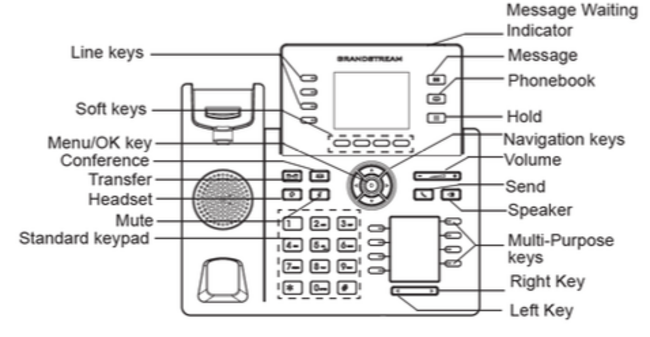
GRP2615
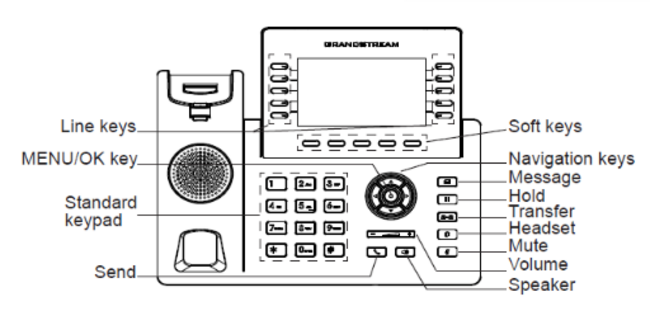
GRP2616
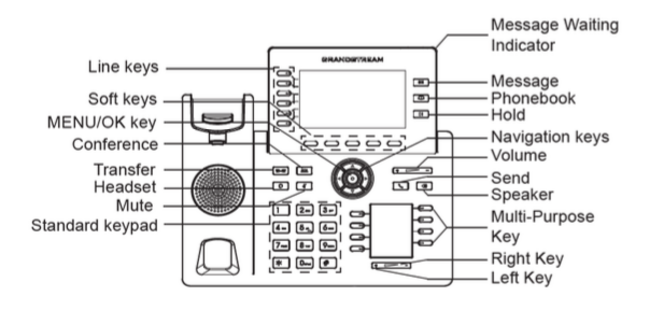
GRP2614 / GRP2615 / GRP2616 Keypad Buttons
| Icon | Button | Function |
|---|---|---|
 | Contacts | Press to view and edit contacts. information. |
 | Hold | Press to put call on hold or resume the call. Can only be resumed from the same phone. Video: Hold vs. Park |
 | Mute | Press to mute or unmute your handset microphone while on a call. Pressing this button when not on a call will put the phone in Do Not Disturb mode and will break inbound Ring Groups (not recommended). |
 | Headset | Press to switch to Headset mode. |
 | Message | Press to access Voicemail messages for the extension associated with that extension only. |
 | Transfer | Press to initiate call transfer. You will have the option to choose either an Attended Transfer or a Blind Transfer. |
 | Conference | Press to initiate a conference call. |
 | Speaker | Press to use speaker phone. |
 | Send/Redial | Press to send call or redial. |
 | Volume | - (left) decreases volume / + (right) increases volume. |
 | Navigation keys (4) | Navigate menu options. When on idle screen, press up for 3 seconds to display IP info. |
 | Menu | Press to access menu. |
Other functions:
Call any internal extension (including softphones), by either pressing the button on the lower BLF screen, or dialing the extension number.
Intercom (or Auto-Answer Intercom) allows a caller to dial an extension and speak through the receiving ends speaker phone automatically. This function must be enabled for each extension in the Advanced Tab of each extension's page in your Portal (Extensions Functions/Settings. Word of warning: most people really hate this feature. Use it sparingly, or only in places where you need to address a room. :)
Paging via overhead speakers requires special group setup and may require additional special equipment. Please submit a ticket through your customer portal or call us at 423-567-4888 to discuss.
Notes
\\The Lines keys on the left side of your phone's screen should not be pressed. They do not do what other phone companies' buttons do. No touchy!
Boot Loop
If a phone becomes stuck in a boot loop, but restarting the phone allows you to see the “Initializing” bar, please follow these steps.
Please follow the instructions below to reset the phone using the keypad
If connected via LAN cable, disconnect it and proceed only with a power adapter plugged in.
While the device is booting, the bottom screen will show the Grandstream logo, then the main screen will show the logo. As soon as it displays the “Initializing” bar, press and hold the 1 + 9 keys on the keypad.
The LCD will display a recovery menu with two options:
- Factory Reset: Restore all settings to defaults.
- Rollback Firmware: Revert to the last installed alternative firmware.
Use the up/down arrow keys to select Rollback if version 1.0.11.15 is available, or just Factory Reset if not, then press the Submit softkey button to confirm.